

Remove EXIF Data from Photos for Free
Remove EXIF data from JPG, PNG and WebP photos, including GPS location, camera model and date taken. Portrait JPG photos stay upright, and your file never leaves your device.
Drop your image here
or click to browse: one JPG, PNG or WebP photo
What This EXIF Remover Takes Out and Keeps
GPS location, camera details and dates are removed. The picture itself is copied byte for byte, unless a photo needs turning upright.
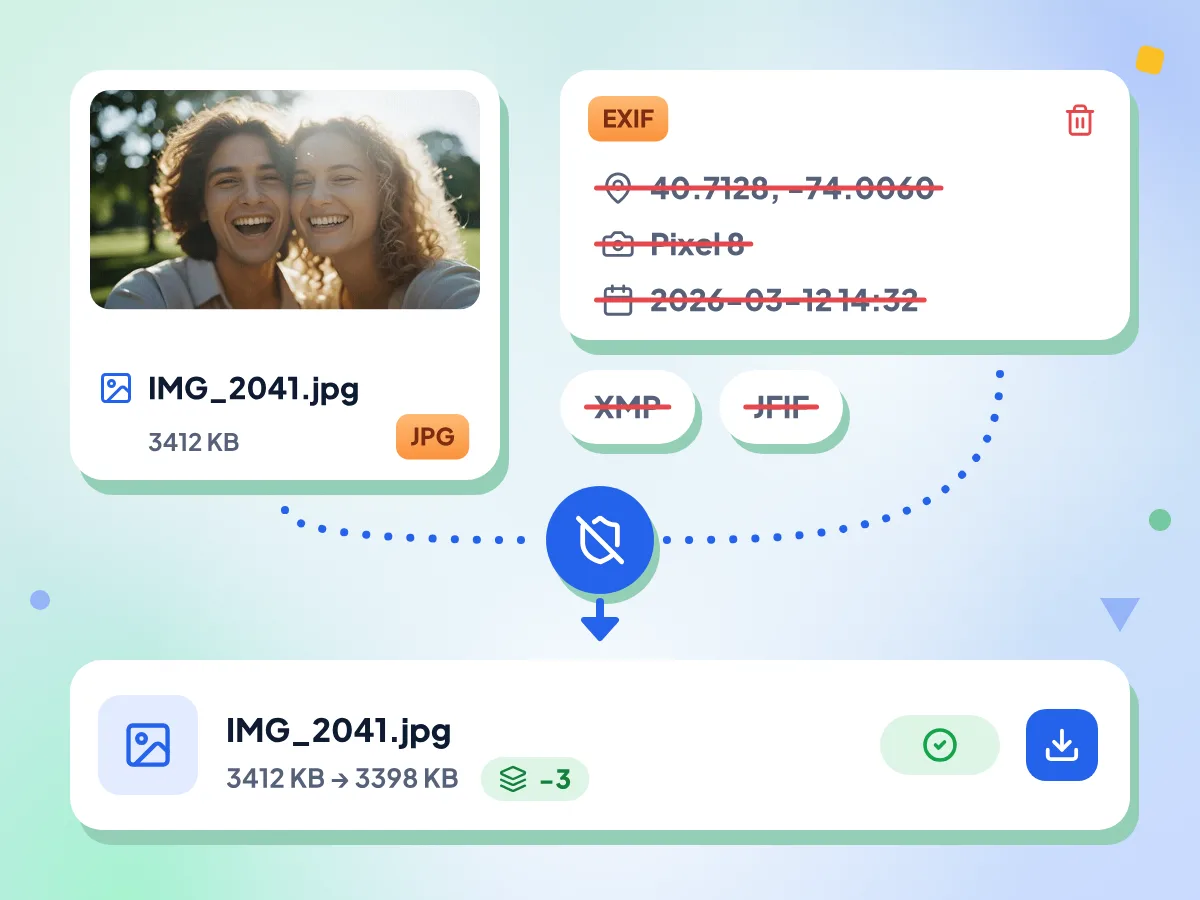
Remove EXIF Data, GPS and Camera Details
Strip Metadata deletes the EXIF block with your GPS coordinates, camera make and model, date taken and the hidden preview thumbnail. XMP and IPTC captions, keywords and author fields go too.
- GPS coordinates and altitude removed
- Camera model and serial number removed
- Saved as clean- plus your file name
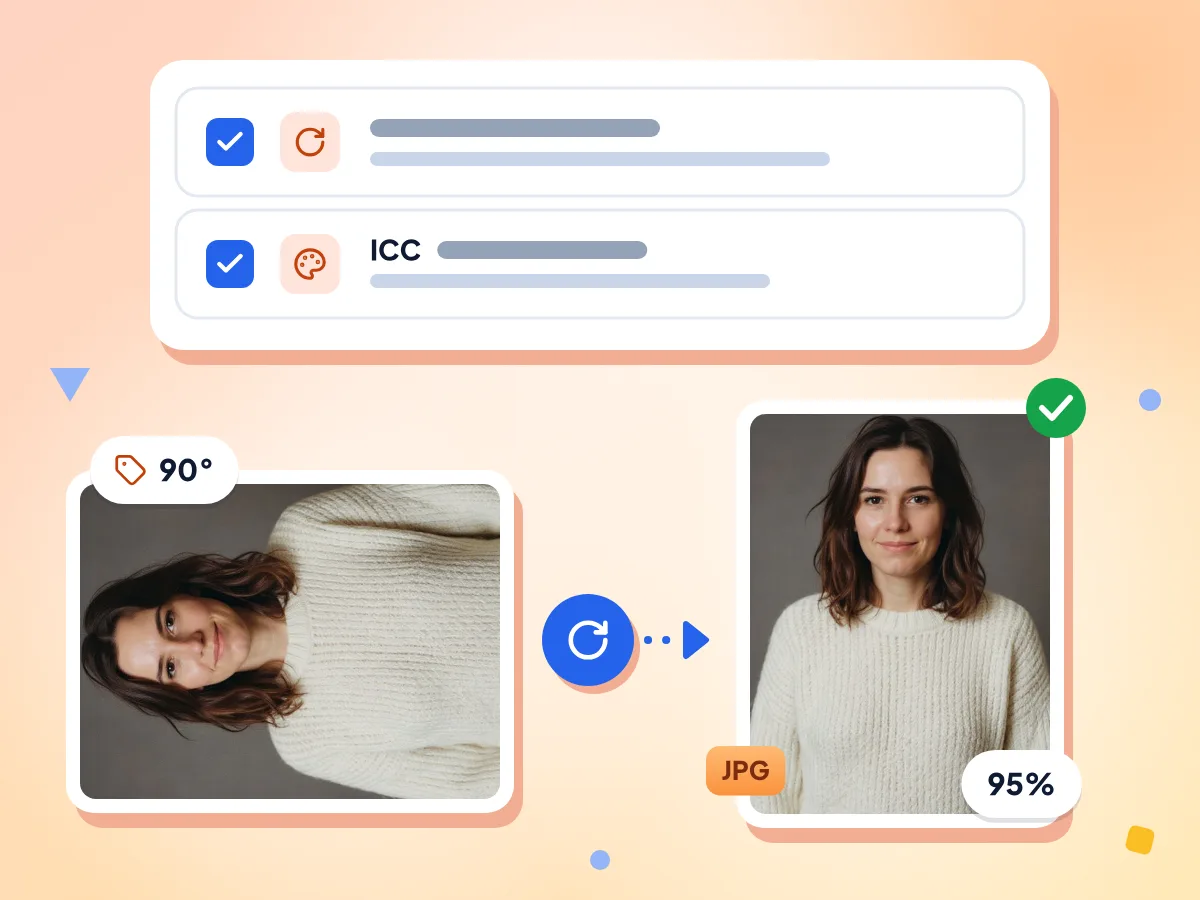
Keep Photos Upright After Removing EXIF
Phones often save portrait JPG photos sideways with a rotation tag. With Preserve orientation on, the photo is turned upright before the tag is deleted, so other apps show it the right way up.
- Preserve orientation is on by default
- Rotated photos re-saved at 95% quality
- Preserve color profile is on by default
No Re-Compression for Most Files
JPG, PNG and WebP files are rebuilt from their own bytes, so the image data is identical. Only a JPG that needs turning upright is re-saved, at 95% quality.
Works on JPG, PNG and WebP
In PNG files, hidden text notes such as AI image prompts are removed, along with EXIF, XMP and the last-edited time. WebP files lose their EXIF and XMP blocks.
Your Photo Stays on Your Device
Your browser removes the metadata on your own device, so the photo is not sent to us. Usage stats record your options, timing and a rough file size, never the file or its name.
Check the Clean Copy
After stripping, the file row shows the size before and after and a count of what was removed. To see every tag, open the clean copy in our image metadata viewer.
How to Remove EXIF Data
Add your photo.
Drop one JPG, PNG or WebP file onto the box, or click to choose it. The editor opens with your file ready to clean.
Pick what to keep.
Leave Preserve orientation on so portrait photos stay upright, and keep the color profile for accurate colors. Then click Strip Metadata.
Download the clean file.
Click Download Clean Image to save it as clean- plus the original name. To clean the next photo, click Upload another image.
Who Needs to Remove EXIF Data?
A photo can tell people where you live and what you shoot with. Remove those details before the file leaves your hands.
Selling and Sharing Online
Photos taken at home can reveal your address through GPS. Clean them before posting to marketplaces, forums, dating sites or blogs that may keep the original file.
- Listing photos for marketplaces that show the original file
- Pictures sent by email or shared as cloud links
- Blog and forum uploads that keep camera details
Protecting Your Location
GPS tags can pinpoint where you live, work or travel. Remove them before sending a photo to people you do not know, or posting it where anyone can download it.
- Home and workplace coordinates saved by phone cameras
- Date and time stamps that reveal your daily routine
- Camera serial numbers that link your photos together
AI Images and Client Files
PNG files from AI image tools often store the full prompt and settings as text. Remove those notes and editing software tags before sharing artwork or client files.
- Prompts and seeds saved inside AI-generated PNG files
- Editing software, author and copyright tags in XMP and IPTC
- For many photos at once, use the batch EXIF remover
Frequently Asked Questions
Answers about removing EXIF data, GPS location and other photo metadata.
How do I remove EXIF data from a photo?
Drop the photo on this page, leave both options on and click Strip Metadata. Then click Download Clean Image. The new file is named clean- plus the original name, with the EXIF, GPS and XMP data removed.
How do I remove the GPS location from a photo?
Strip the EXIF data. Phones save latitude, longitude and altitude inside the EXIF block, and this tool always removes that block. There is no setting to keep it. To stop new photos being tagged, turn off location access for your camera app.
Does removing EXIF data reduce image quality?
No, for most files. JPG, PNG and WebP files are rebuilt from their own bytes without re-compressing, so the picture is identical. The one exception is a JPG with a rotation tag: with Preserve orientation on, it is turned upright and re-saved at 95% quality.
What does Preserve orientation do?
It keeps JPG photos the right way up. Many phones save portrait shots sideways and add a rotation tag. With this option on, the photo is turned upright before the tag is removed. Turn it off to keep the original pixels, but the photo may then appear sideways.
What does Preserve color profile do?
It keeps the color profile, which tells apps how to show colors such as an iPhone's wide Display P3 range. Today the switch only changes PNG files. JPG and WebP keep their profile either way, though a JPG turned upright may lose it. A profile describes colors, not you or your location.
Which file types can I clean?
JPG, PNG and WebP photos work in every modern browser. TIFF files are accepted, but most browsers cannot open them here, so convert them to JPG first. HEIC photos, videos and PDFs are not supported. For HEIC, our HEIC to JPG converter also removes GPS data by default.
Can I remove EXIF data on an iPhone?
Yes, open this page in Safari, tap the upload box and choose a photo. HEIC photos are not supported here, so if you see an error, convert it with the HEIC to JPG tool first, then clean the JPG.
What metadata stays in the cleaned file?
A few blocks can stay. JPG files keep their color profile, any comment text and data stored after the image, such as the short video in a motion photo. Content credentials (C2PA) also stay in JPG and PNG files. Check the clean copy in the metadata viewer if this matters.
Is it safe to remove EXIF data?
Yes. Removing EXIF deletes details about the photo, not the picture, and your original file is not changed because you download a new copy. You lose the date taken. Motion-photo video and content credentials stay in the file, so check the clean copy in the metadata viewer if this matters.
Is my photo sent to a server?
No. Your browser reads the photo and writes the clean copy on your device. The page does send anonymous usage stats to Google Analytics: the two option settings, file count, processing time, file type and a size range. File names, pictures and metadata values are not part of them.
Can I turn a sideways PNG or WebP photo upright?
Not here. Only JPG photos are turned upright. For PNG and WebP, the rotation tag is deleted and the pixels stay as stored, so use our image rotate tool afterwards.
Can I remove EXIF data from many photos at once?
This page cleans one photo at a time. For up to 50 photos per run, use the batch EXIF remover. It has the same two options and saves every cleaned file in one ZIP named clean-images.zip.
Explore More Tools
Discover other free tools that work great alongside this one
EXIF Viewer
See camera, exposure and GPS data in a photo
Batch EXIF Remover
Remove metadata from up to 50 images at once
Image Compressor
Reduce file size without losing quality
Image Converter
Convert between 30+ image formats
Background Remover
Remove image backgrounds and save a transparent PNG
Image Resizer
Resize images to exact dimensions