

Free Video Thumbnail Extractor
Extract a thumbnail or any frame from your video for free and save it as a JPG or PNG at full resolution. The video never leaves your device, and there's no sign-up or watermark.
Drop your video here
or click to browse. MP4, MOV, WebM or AVI
Extract Frames From Video at Full Resolution
Pick a moment on the timeline, capture it and save it as a JPG or PNG the same size as your video. Grab one still or a whole set.
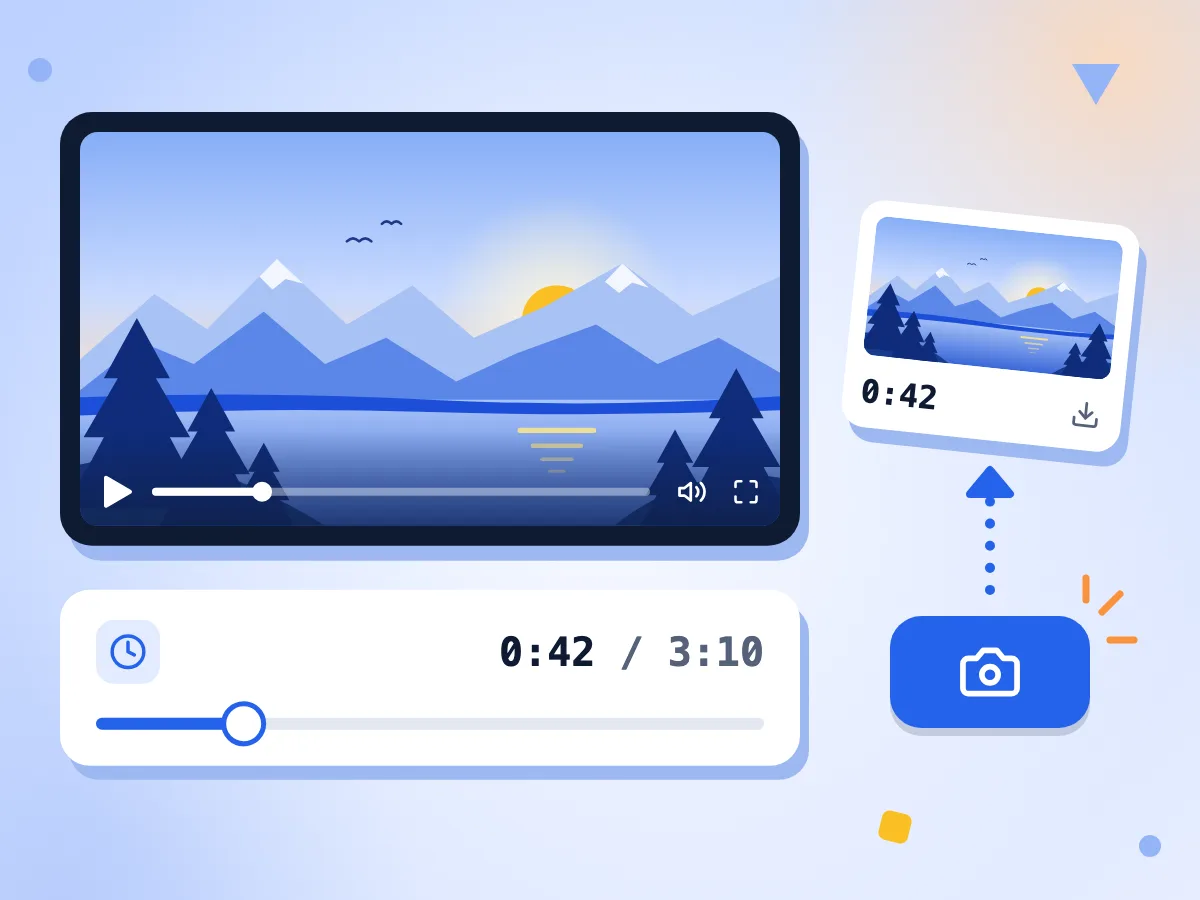
Extract Any Frame From a Video
Play or scrub the video, then drag the Timestamp slider to the moment you want. It moves in hundredths of a second. Click Capture Frame to save the picture on screen.
- Timestamp slider with a time readout
- Built-in player to play and pause
- Capture Frame saves the current picture
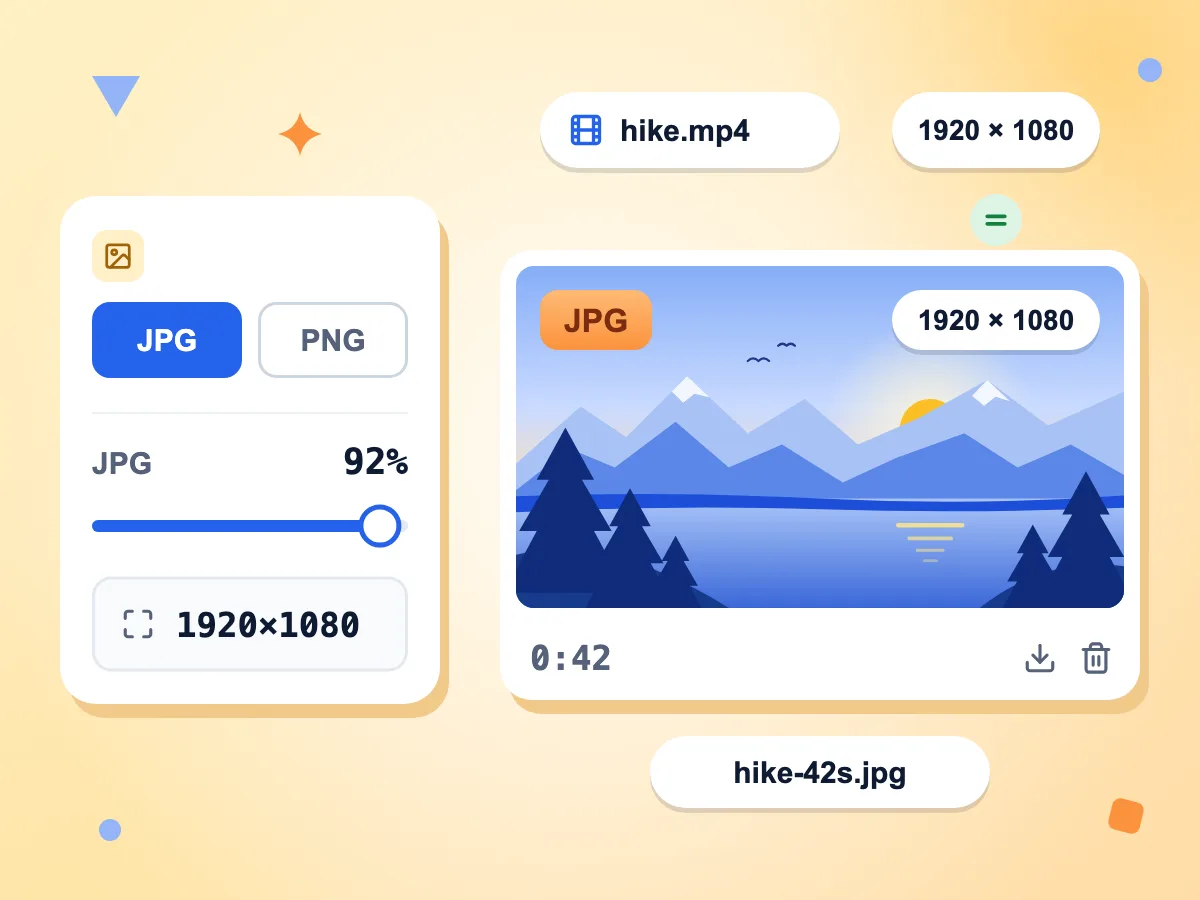
Save Video Frames as JPG or PNG
Each frame is saved at the video's own pixel size, so a 1080p video gives a 1920 × 1080 image. PNG keeps every pixel. JPG is smaller, with quality from 10% to 100%.
- Output Format: JPG or PNG
- JPG Quality 92% by default
- Same resolution as the video
Capture Many Frames, One ZIP
Click Capture Frame as often as you like. Each still lands in a grid with its timestamp, and Download All saves them as one ZIP. For a moving clip, try Video to GIF.
Your Footage Stays With You
The video opens from your own device, and your browser draws each still. We get usage counts, such as the format you chose, but never the video or its frames.
Works With MP4, MOV and WebM
Add an MP4, MOV, WebM or AVI file. If the video plays in the editor, you can capture any frame of it. AVI rarely plays in browsers, so convert it to MP4 first.
Clean Stills With Nothing Added
The saved image is only the video frame, with no logo, watermark or border. There is no account to create and no cap on how many frames you capture.
How to Extract a Frame From a Video
Add your video.
Drop one MP4, MOV, WebM or AVI file on the box, or click to choose it. The editor opens with the video in a player.
Find the right moment.
Play the video or drag the Timestamp slider until the frame you want shows. Choose JPG or PNG in the settings, then click Capture Frame.
Download your stills.
Each capture appears below the player with its timestamp. Save one with its download button, or click Download All to get two or more in one ZIP file.
Why Extract a Frame From a Video
Thumbnails, how-to screenshots and reference stills are the usual reasons.
Video Thumbnails and Covers
Pick the frame with the clearest face or action and save it at full size. Then add text in an image editor and upload it as your YouTube thumbnail or cover.
- Grab a 1920 × 1080 still for a YouTube thumbnail
- Lower JPG Quality if the upload form says the file is too large
- Pick a cover image for a Reel or Short
Documentation & Tutorials
Pause a screen recording on the step you need and capture it. The still has the recording's own sharpness, unlike a screenshot taken of a scaled-down player.
- Capture each UI step from a screen recording
- Save text-heavy frames as PNG so letters stay crisp
- Download a set of steps together as one ZIP
Video Editing & Production
Pull reference stills for a storyboard, a color check or client feedback without opening an editing program. Each file name carries the second it came from.
- Mark key moments of a cut for a storyboard
- Share a single frame to flag a shot in review
- File names show the second each frame was taken
Frequently Asked Questions
Common questions about extracting frames from videos online.
How do I extract a frame from a video online?
Drop your MP4, MOV or WebM video on this page, then play it or drag the Timestamp slider to the moment you want. Click Capture Frame and download the still as a JPG or PNG. It's free, with no account and no watermark.
How do I extract a frame without losing quality?
Choose PNG. The frame is saved at the video's own resolution and PNG is lossless, so the still is as sharp as the video. JPG at the default 92% looks close and is usually smaller. Blur that is already in the video stays in the frame.
What resolution is the extracted image?
The same as the video. A 1080p video gives a 1920 × 1080 image and a 4K video gives 3840 × 2160. The Resolution box in the settings shows the size before you capture. There is no resize option, so use the Image Resizer afterwards for a smaller picture.
Is this better than taking a screenshot of the video?
Usually, yes. A screenshot copies your screen, so it is limited to the player's size on screen and can catch the controls or the cursor. Capture Frame takes the picture from the video itself at full resolution, with nothing drawn on top.
Can I go through the video frame by frame?
Close to it. The Timestamp slider moves in 0.01-second steps, which is finer than one frame of a 30 fps video, so a few small moves may show the same frame. There are no next-frame buttons, and the time readout shows whole seconds.
Can I extract several frames from one video?
Yes, one click at a time. Each Capture Frame click adds the current frame to a grid below the player, with no limit. Download All saves them as one ZIP, named by frame number and second. There is no option to export every frame or one frame per second automatically.
Which video formats can I use?
The uploader takes MP4, MOV, WebM and AVI files, one at a time. The video must also play in your browser: MP4 (H.264) and WebM play almost everywhere, but AVI and some iPhone HEVC MOV files may not. Convert those to MP4 with the Video Converter first.
Why is the player black, or why does Capture Frame do nothing?
Your browser may not be able to decode that video, so there is no picture to capture and no timeline appears. AVI files and some HEVC videos are the usual suspects. Convert the file to MP4 with the Video Converter, then add it again.
Can I grab a thumbnail from a YouTube Short or Reel?
Only if you have the video file itself. This page opens files from your phone or computer, not web pages, so open your saved copy of the Short or Reel here. Then drag the slider to the moment you want and capture it as your cover.
Should I save the frame as JPG or PNG?
Pick JPG for photos and thumbnails you plan to upload, since the file is smaller; its quality slider runs from 10% to 100% and starts at 92%. Pick PNG for screen recordings with text, or for more editing. Choose the format before you click Capture Frame.
Can I extract a frame from a video on iPhone or Android?
It should work in a phone browser. Add a video from your gallery or files, then use the same Timestamp slider and Capture Frame button. The saved image goes wherever your browser keeps downloads.
Is my video uploaded when I extract a frame?
No. The video is read from your device and every still is drawn inside your browser tab, with no engine or model to download. The page does send usage stats, like the chosen format, JPG quality and a rough size range, but never the video, its frames or the file name.
Explore More Tools
Discover other free tools that work great alongside this one
Video Trimmer
Trim and cut video clips in browser
Video Compressor
Shrink MP4, MOV and WebM videos with three quality presets
Video to GIF
Convert any video clip to an animated GIF in your browser
Video Converter
Convert videos between popular formats
Image Compressor
Reduce file size without losing quality
Image Resizer
Resize images to exact dimensions