

Free Video Converter
Convert videos to MP4, WebM, MOV, MKV, GIF and more with this free video converter. Add several files up to 1 GB each, save just the audio as MP3, and download everything as one ZIP.
Drop your video files here
MP4, MOV, MKV, WebM and more
Max file size: 1 GB · Multiple files supported
How to Convert a Video in 3 Steps
Add your videos.
Drag MP4, MOV, MKV or WebM files onto the box, or click Choose videos. Add as many as you like, each up to 1 GB.
Pick an output format.
MP4 is preselected, even for MP4 files, which get re-encoded. Or pick another video format, or open the Audio tab for MP3, WAV or AAC, then click Apply to all files.
Convert and download.
Click Convert All and watch each file's progress. Save videos one by one, or click Download All to get the whole batch as a ZIP.
What This Free Video Converter Can Do
Turn MP4, MOV, MKV and WebM videos into 11 video formats or MP3, WAV and AAC audio. Set the bitrate and frame rate, and convert a whole batch in one go.
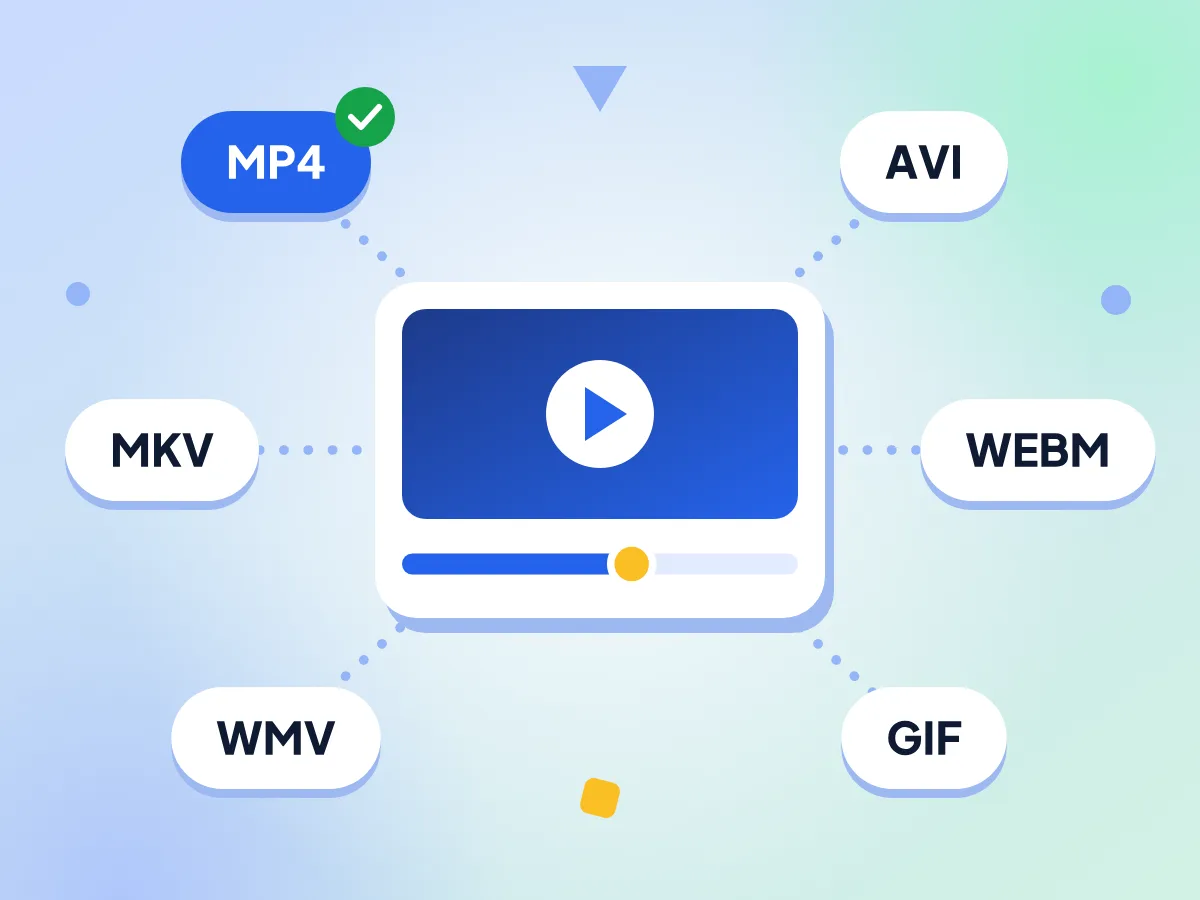
Convert Videos to MP4, WebM and MKV
Pick from 11 video formats, including MP4, WebM, MKV, AVI, WMV and animated GIF. Set one format for the whole batch, or choose a different one for each file.
- MP4 uses H.264 video and AAC audio
- WebM uses VP9 video and Opus audio
- GIF output: 15 fps, 480 pixels wide
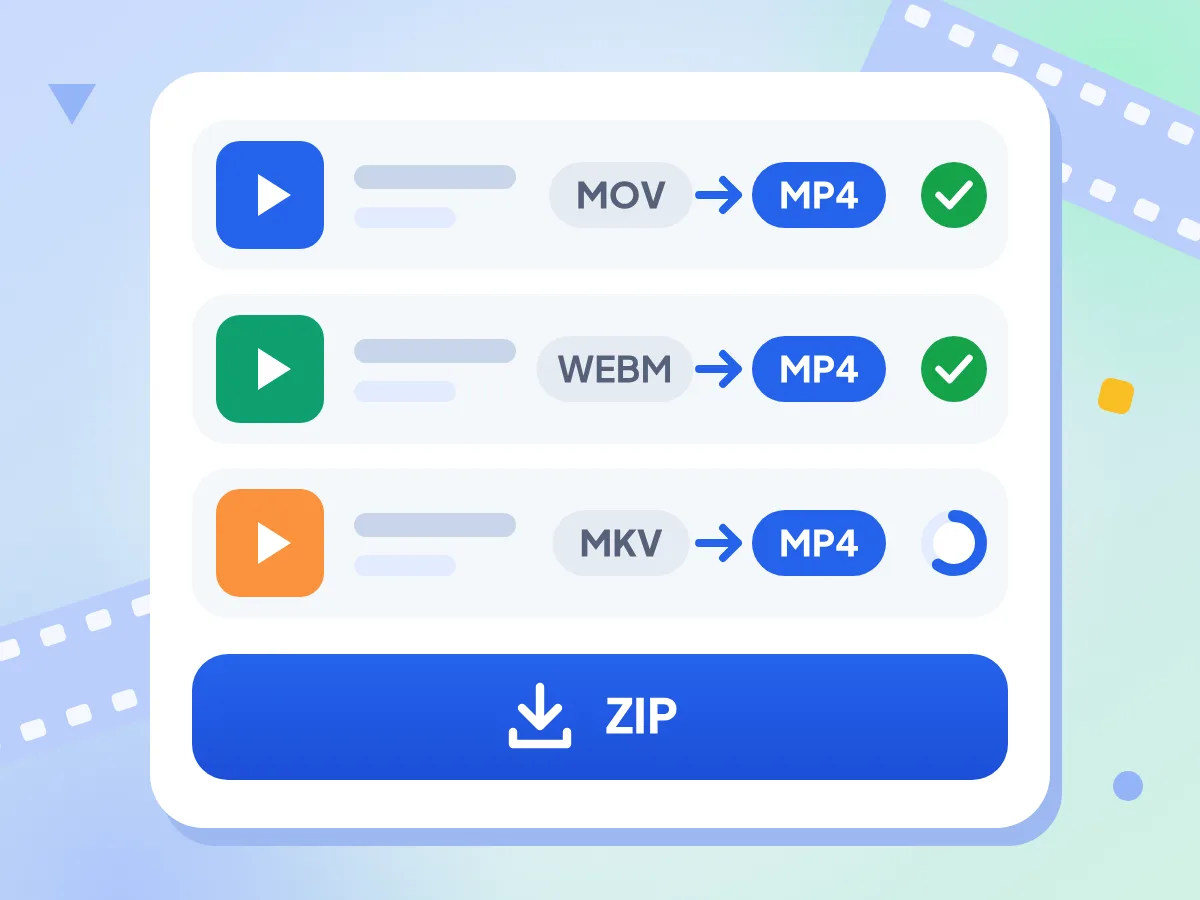
Batch Convert Videos to MP4
Add MOV and MKV clips together and convert the whole list to MP4 in one go. Files convert one after another, each with its own progress, and Download All saves a ZIP.
- Each file shows its own progress percent
- Retry a failed file on its own
- Two or more files download as one ZIP
Videos Stay on Your Device
Your video is opened and converted in this browser tab, and the new file saves straight to your device. You don't need an account, and converted files carry no watermark.
Control Bitrate, Frame Rate and Sound
Leave bitrate on Auto, or pick a preset from 500 to 16,000 kbps. Choose 24, 25, 30, 48 or 60 fps, or switch on Remove audio for a silent clip.
Save the Sound as Audio
Switch to the Audio tab to save only the soundtrack as MP3, WAV or AAC. Pick a bitrate from 32 to 320 kbps, or leave it on Auto for 256 kbps.
Up to 1 GB per Video
Each file can be up to 1 GB, with no daily limit and no cap on how many you add. Long HD videos take a while, since conversion runs on your own device.
Frequently Asked Questions About the Video Converter
Answers about formats, file size, quality settings, audio and batch downloads.
How do I convert a video to a different format?
Add your video, open the format menu and pick a format, such as MP4, WebM or MKV. Click Convert All, wait for 100%, then download. MP4 is preselected, and an MP4 converted to MP4 is re-encoded with your bitrate and frame rate settings.
Which video formats can this converter open and save?
It opens MP4, MOV, MKV, WebM and AVI videos up to 1 GB each. It saves MP4, WebM, MOV, MKV, AVI, WMV, FLV, 3GP, OGG, GIF and animated WebP. 3GP is always 352 x 288, with black bars instead of stretching, and WMV files hold MPEG-4 video. The Audio tab adds MP3, WAV and AAC.
Which video format plays on the most devices?
MP4 with H.264 video and AAC sound, which is exactly what this converter makes when you choose MP4. Phones, computers, smart TVs and web browsers play it. Pick WebM for web pages, MOV for Apple editing apps, and GIF only for short silent loops.
Will converting a video lower its quality?
Yes, a little, every time you convert, even MP4 to MP4. The converter re-encodes the video instead of copying it, so some detail is lost. On Auto, MP4, MOV and MKV use a medium quality level. Pick a higher bitrate, such as 4,000 or 8,000 kbps, to keep more detail.
What do the bitrate, frame rate and Remove audio settings do?
Bitrate sets how much data each second of video gets. Auto lets the encoder decide, while 500 to 16,000 kbps fixes it. Frame rate saves the video at 24, 25, 30, 48 or 60 frames per second. Remove audio drops the sound track. These settings apply to every file in the batch.
Can this converter save only the audio from a video?
Yes. Open the format menu on a video, switch to the Audio tab and choose MP3, WAV or AAC. The picture is dropped and only the soundtrack is saved. MP3 and AAC use 256 kbps on Auto, or pick 32 to 320 kbps. WAV is uncompressed, so those files are much larger.
Can I convert several videos at once?
Yes. Add as many videos as you like, then set one format for all of them or a different one per file. They convert one after another, and each shows its own progress. When the batch ends, save files one by one or click Download All for a single ZIP.
Is there a size limit for video files?
Each video can be up to 1 GB, and bigger files are turned away with a message. There's no daily limit and no cap on how many files you add. Long or 4K videos need a lot of memory, so they may fail on phones and older computers.
Why is video conversion slow?
Because every frame is re-encoded on your own device rather than on a remote server. Long, high-resolution or high-frame-rate clips take longest. The first conversion also waits while the page loads its conversion engine, about 32 MB. Keep the tab open until each file reaches 100%.
What should I do if a video fails to convert?
Click the retry button on that file first. If it fails again, try another output format such as MP4, and check that the file is a complete MP4, MOV, MKV or WebM video under 1 GB. The rest of the batch keeps converting, and a banner shows how many files failed.
Is this video converter safe to use?
Yes. Your videos are converted inside this browser tab and never sent to our servers, there's no account to make, and downloads have no watermark. The page loads its engine from the public unpkg.com file host, and our analytics record page visits and editor time, never your files or their names.
When You Need a Video Converter
For Phone and Screen Recordings
iPhones record MOV files, and many screen recorders save MKV or WebM. Convert them to MP4 so they open on Windows PCs, smart TVs and most editing apps.
- Turn iPhone MOV clips into MP4 for Windows and Android
- Convert MKV screen recordings to MP4 before you edit them
- Set 30 fps so clips match the rest of a project
For Websites and Social Posts
Pages load faster when videos are small and in a format browsers play. Make WebM or MP4 copies, lower the bitrate, or turn a short clip into a looping GIF.
- Make a WebM copy for your site's video player
- Lower the bitrate to 1,000 kbps for smaller files
- Turn a short clip into a looping GIF
- Remove the audio from background videos
For Audio and Editing Copies
Pull the soundtrack out of a lecture, interview or music video, or make H.264 copies for editing apps. Each file can have its own format, so one batch can do both.
- Save a lecture or interview as an MP3
- Keep uncompressed WAV sound for audio editing
- Make MOV or MKV copies with H.264 video
- Mix video and audio outputs in one batch
Explore More Tools
Discover other free tools that work great alongside this one