

Free SVG to JPG Converter
Convert SVG to JPG for free, one file or a whole batch. Each JPG is drawn at twice the SVG's size by default, on a white background, and your files stay on your device.
Drop your images here
SVG
Max file size: 100 MB · Multiple files supported
How to Convert SVG to JPG Online
Add your SVG files.
Drop them on the box above or tap Choose images. Only .svg files work here, each up to 100 MB, and you can add many at once.
Pick a size if you need one.
JPG is already set as the output. Leave Resize off for twice the SVG size, or type a Width, then press Convert All.
Save your JPG images.
Download them one by one, or press Download All for a single ZIP. Transparent areas are now white, and your SVG files stay as they were.
SVG vs JPG/JPEG: What Changes
Understanding the differences between SVG and JPG/JPEG helps you choose the right format for your needs.
| Specification | SVG | JPG/JPEG |
|---|---|---|
| Compression | None (text-based) | Lossy |
| Quality | Perfect (vector) | Good to Excellent |
| Transparency | Yes | No |
| Animation | Yes | No |
| File Size | Very Small for graphics | Small to Medium |
Why convert from SVG?
- Not suitable for photographs
- Complex images produce very large files
- Potential security risks from embedded scripts
Why choose JPG/JPEG?
- Excellent compression for photographs
- Universal browser and device support
- Small file sizes
When to use SVG
When you need scalable graphics like logos, icons, or illustrations that look sharp at any resolution.
When to use JPG/JPEG
When you need small file sizes for photographs or complex images with many colors.
SVG to JPG Conversion Features
Turn SVG files into JPG images at twice their size by default or any width you pick, one file or many. No account, no watermark and no daily cap.
Convert SVG to High-Resolution JPG
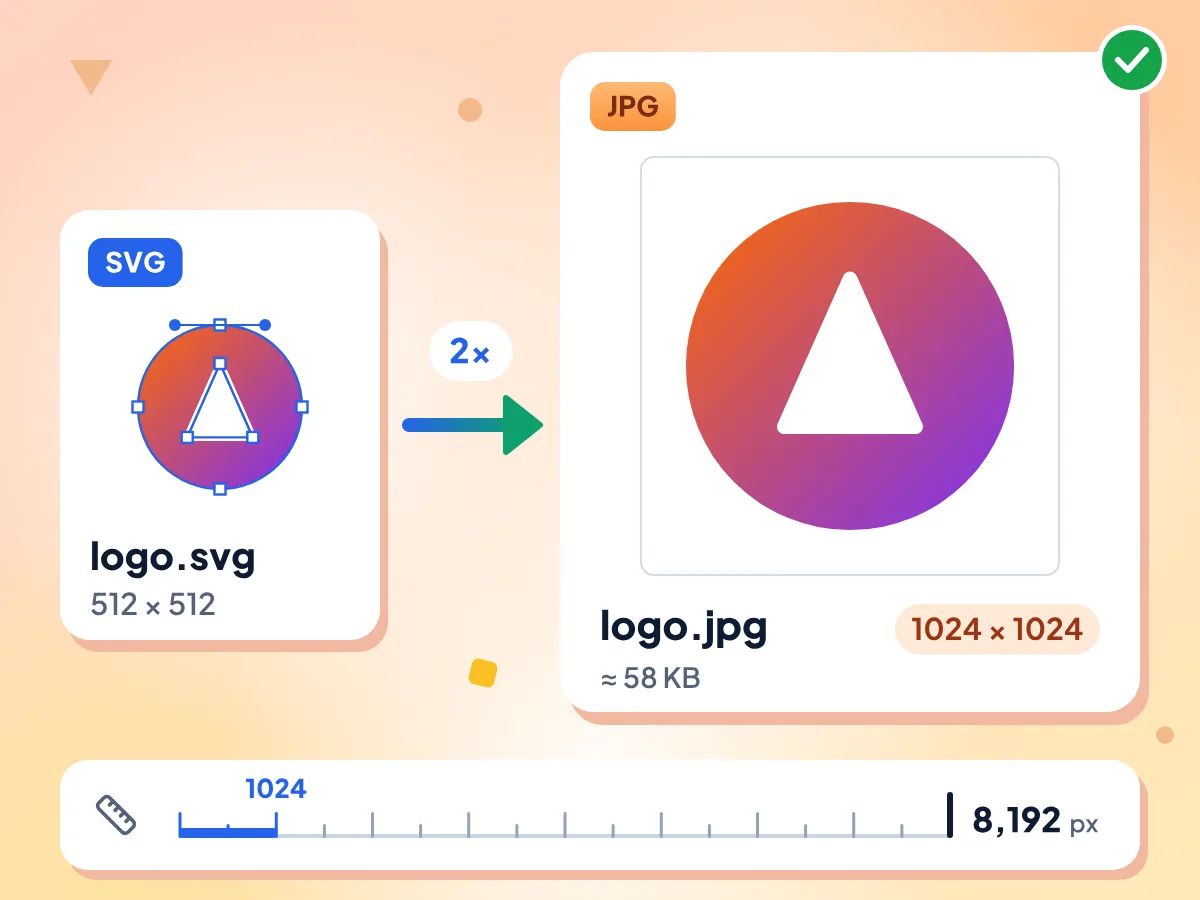
Drop an SVG and get a sharp JPG at twice the size set in the file. A 512-pixel logo becomes a 1024 x 1024 JPG of roughly 58 KB.
- Twice the SVG size by default
- Type a Width for an exact size
- Longest side up to 8,192 pixels
SVG to JPG With a White Background
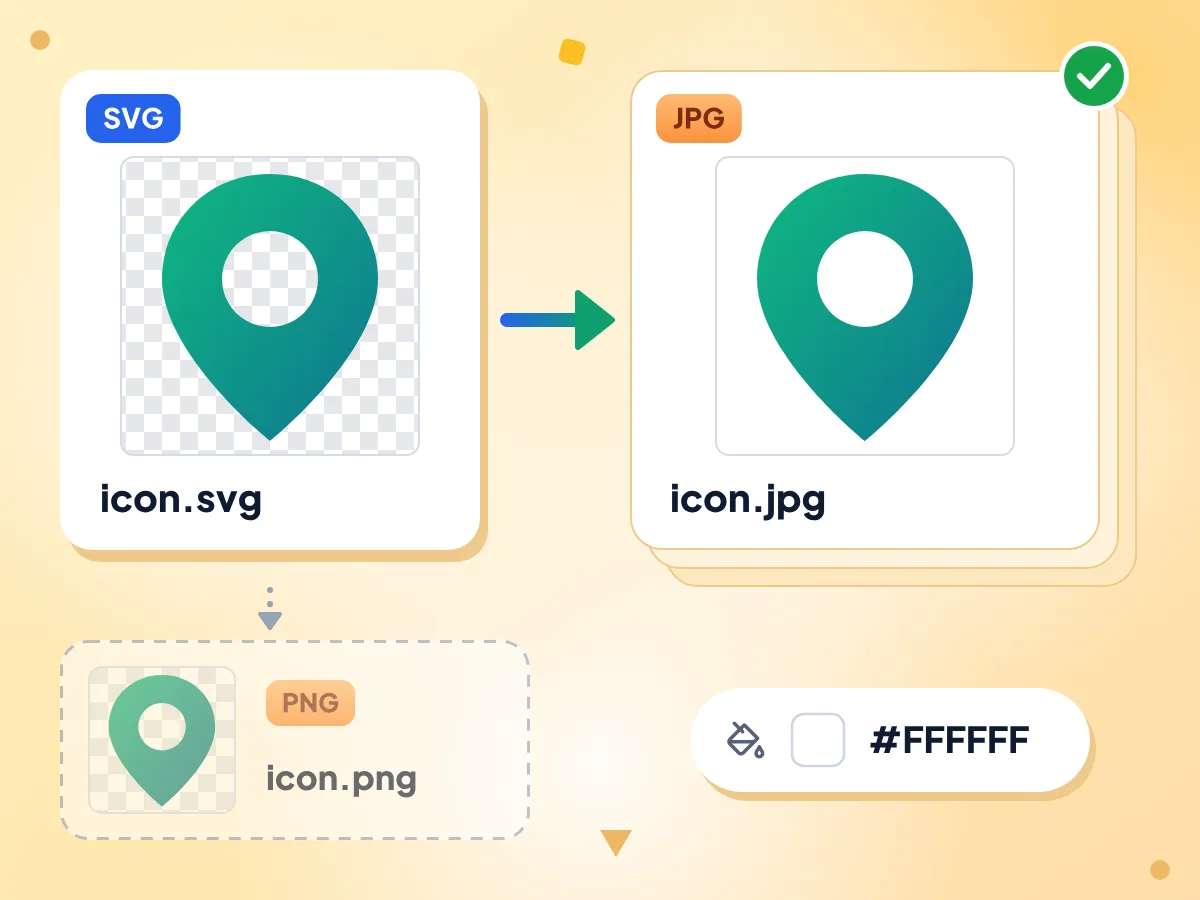
JPG can't store transparency, so clear areas of your SVG are filled with white before the JPG is saved. Logos and icons sit on plain white, ready for documents, slides and upload forms.
- Transparent areas become pure white
- Same white on every file in a batch
- Need transparency? Use SVG to PNG
Convert Many SVGs at Once
Select a whole icon set and press Convert All. Files are drawn one after another with the same settings, and Download All saves them as one ZIP.
SVG to JPG Conversion FAQs
Answers on output size, quality, backgrounds, fonts and batches when you convert SVG to JPG.
Is there a free way to save an SVG as a JPG?
Yes, this page. Drop your .svg files on the box at the top, and since JPG is already chosen, press Convert All and download the results. It runs in a web browser on Mac, Windows and phones, with no fee, account or watermark.
What size will my JPG be?
By default, twice the width and height written in the SVG, so a 512 x 512 logo becomes 1024 x 1024 pixels. An SVG with no size or viewBox becomes 2048 x 2048. The longest side stops at 8,192 pixels. For an exact size, open Resize and type a Width.
How do I keep an SVG sharp when saving it as a JPG?
Make the JPG big enough before you convert, and keep Quality high. The shapes are turned into pixels, so a small JPG blurs when you enlarge it later. Type the largest Width you need in Resize and leave Quality at 90 or raise it. JPG always drops a little detail, even at 100.
Can I convert SVG to JPG with a transparent background?
No. JPG has no transparency, so every clear area of the SVG is filled with white. The Background color picker stays hidden for SVG files today, so the fill is always white. To keep a see-through background, use our SVG to PNG converter instead.
Why is text or an image missing from my JPG?
Your SVG probably links to a web font or picture stored somewhere else. SVGs drawn as images can't fetch outside files, so text falls back to a font on your device and linked pictures are left out. Turn text into outlines, or embed fonts and images in the SVG, then convert again.
Why is my JPG smaller than expected or squashed?
The converter reads the width and height numbers in the SVG but ignores their units. In our test, a page set to 210mm by 297mm came out 420 x 594 pixels, and a 100% width gave a square. Turn off the aspect lock in Resize and type both Width and Height.
Why does a tiny SVG turn into a much larger JPG?
An SVG stores drawing instructions, while a JPG stores every pixel. In our test, a 487-byte logo SVG became a JPG of roughly 58 KB at 1024 x 1024, so the tile showed a large plus. Lower Quality to 75 (roughly 24 KB in the same test) or pick a smaller Width.
How many SVG files can I convert to JPG at once?
As many as your device can handle. There is no batch limit or daily cap, and each SVG can be up to 100 MB. Files are drawn one at a time, Download All gives one ZIP, and SVGs added later with Add More Files also start as JPG.
Can I turn SVG code into a JPG?
Not by pasting it. This page takes .svg files only, so save the code in a text editor as a file ending in .svg, then drop it here. Compressed .svgz files aren't accepted either, so decompress them to .svg first.
Can a script hidden in an SVG run when I convert it?
No. The SVG is opened the way a web page shows a picture, and in that mode browsers never run scripts or click handlers inside it. It also can't load anything from other sites. Only the drawing itself ends up in the JPG.
Are my SVG files uploaded when I convert them?
No. Your browser draws each SVG and saves the JPG right on your device. The first time you convert, the page downloads its image engine, about 14 MB, from our own site. Our analytics count page views and how long the editor stays open, never file names or file contents.
Why Convert SVG to JPG?
Web & Marketing Teams:
- Export logos and brand assets from SVG to JPG for social media cover images
- Create JPG preview thumbnails from SVG infographics for blog posts
- Supply JPEG versions of vector illustrations to platforms that block SVG uploads
Designers & Developers:
- Share SVG mockups as JPG snapshots with clients who cannot open vector files
- Render an SVG at an exact pixel width for app store listings
- Convert SVG charts and diagrams to JPG for embedding in Word or PowerPoint
Everyday Users:
- Turn SVG clipart into a JPG to use as a phone wallpaper
- Convert SVG signatures or stamps to JPG for inserting into PDF documents
- Save an SVG illustration as JPG to share easily via messaging apps
Explore More Tools
Discover other free tools that work great alongside this one