

Image Converter
Convert images to JPG, PNG, WebP or AVIF with this free image converter. Add HEIC, PSD, DNG, TIFF and other files, convert a whole batch in one go, and save the results as one ZIP.
Drop your images here
JPG, PNG, WebP, GIF, SVG and more
Max file size: 100 MB · Multiple files supported
How to Convert Images in 3 Steps
Add your images.
Drag files onto the box or click Choose images to pick them from your computer or phone. You can add many files at once, each up to 100 MB.
Choose an output format.
Select a format and click Apply to all files, or set one per file. JPG is preselected for most images and PNG for JPG files. Adjust quality or resize if you need to.
Convert and download.
Click Convert All and watch each file finish. Download images one by one, or click Download All to save the batch as a ZIP.
Supported Image Formats
How common formats compare on compression, transparency and animation. The converter also opens PSD, camera RAW and PDF files. Animated GIF and WebP stay animated when saved as GIF or WebP; other formats keep the first frame.
Digital photography
Logos and graphics
Modern web development
Next-generation web optimization
Animated graphics
iPhone and iPad photography
Logos and icons
Professional photography
Windows applications
What You Can Do With This Free Image Converter
Turn phone, camera and design files into formats most apps open. Set the quality, resize if you need to, and convert a whole batch in one go.
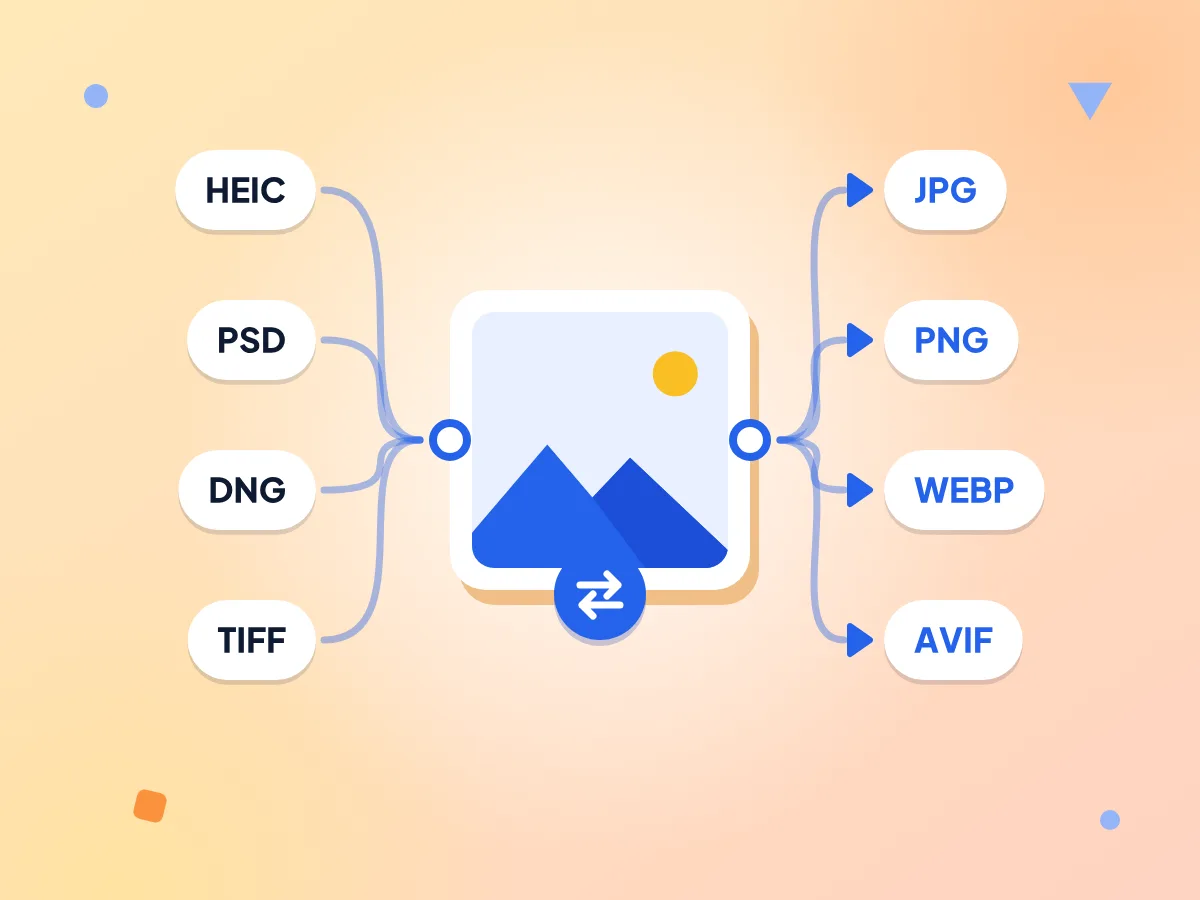
Convert HEIC, PSD, DNG and TIFF Images
Open iPhone HEIC photos, PSD design files, DNG camera RAW and TIFF scans, then save them as JPG, PNG, WebP or AVIF. Pick the output for each image or apply one to all.
- Camera RAW in DNG, CR3 and RAF
- Every PDF page becomes its own image
- Transparency kept in PNG, WebP and AVIF
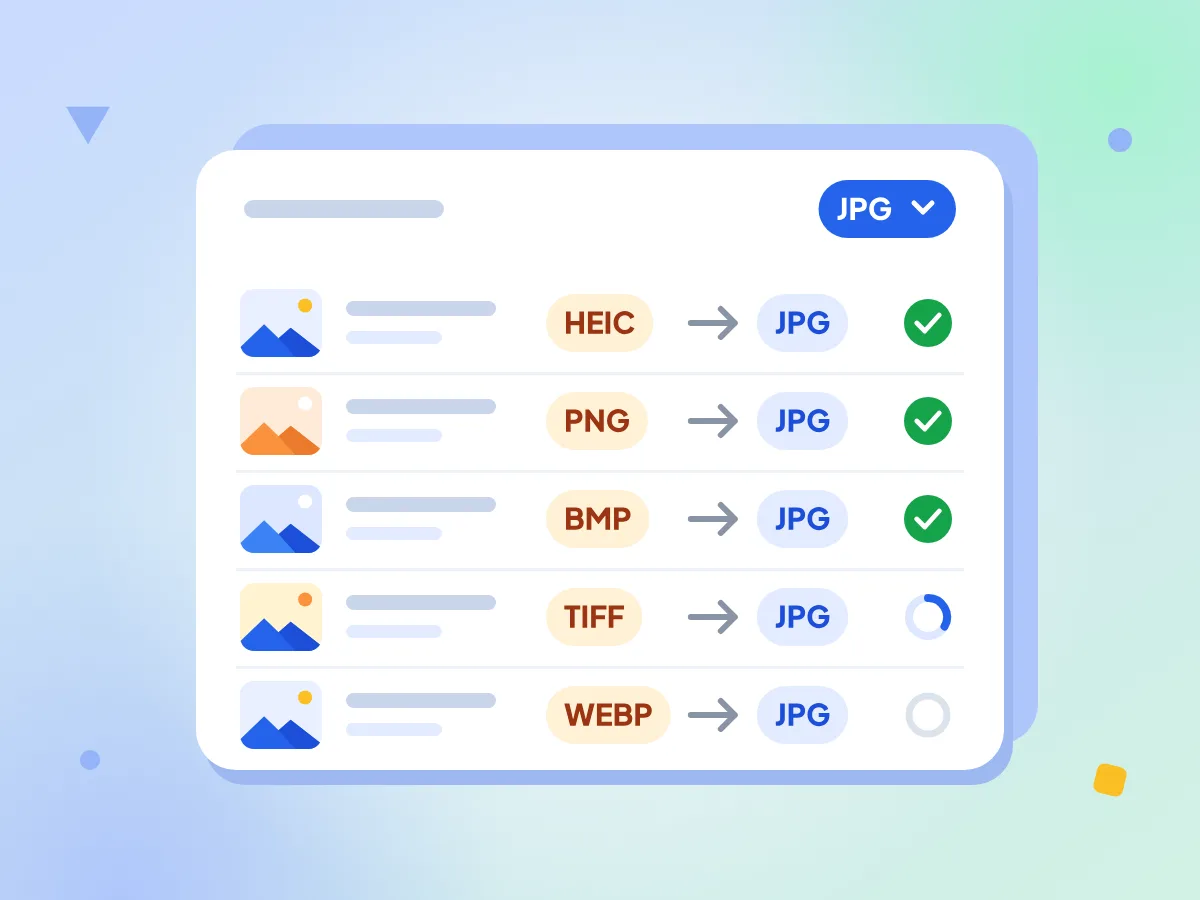
Bulk Convert Mixed Images to JPG
Drop HEIC, PNG, BMP, TIFF and WebP files in together and set JPG for the whole batch. Each file shows its own progress and status, and Download All saves one ZIP.
- Change the format or quality per file
- Retry a failed file without restarting
- Download files one by one or zipped
Files Stay on Your Device
Conversion runs in your browser tab, so your photos are never sent to a server. There's no account to create and no watermark on the files you download.
Quality You Control
JPG, WebP and AVIF have a quality slider from 1 to 100, set to 90 by default. PNG is always lossless, and WebP and AVIF also offer a lossless switch.
Resize While You Convert
Type a new width or height in pixels and keep the aspect ratio, or pick Contain, Cover, Stretch or Pad to hit an exact size without a second tool.
Up to 100 MB per Image
Each file can be up to 100 MB, and there's no daily limit on how many images you convert. Big batches run one file at a time to keep your browser stable.
Frequently Asked Questions About the Image Converter
Answers about formats, file limits, quality settings and batch downloads.
How do I convert an image without losing quality?
Save it as PNG, which is always lossless, or turn on Lossless under Advanced when you pick WebP or AVIF. For JPG, move the quality slider toward 100 (the default is 90). Converting can't bring back detail that an earlier JPG save already removed.
How do I convert multiple images to different formats at once?
Add all the files together, then use the format menu on each file to pick its output, such as JPG for photos and PNG for a logo. The settings button on a file overrides its quality, size and advanced options. Convert All runs the batch.
Can this image converter open PSD, RAW and PDF files?
Yes. Along with JPG, PNG, WebP, GIF, BMP and TIFF, it opens PSD and PSB files, camera RAW in DNG, CR3 and RAF, and HEIC and AVIF photos. Each PDF page becomes its own image, and a multi-page PDF downloads as a ZIP.
Should I convert my image to JPG, PNG, WebP or AVIF?
Choose JPG for photos that must open everywhere. Choose PNG for screenshots, logos and anything with transparency. Choose WebP or AVIF for smaller website files. Both also keep transparency, and both have a lossless option for sharp graphics.
Can I resize an image to 3000x3000 while converting it?
Yes. Open Resize, switch off the aspect lock and enter 3000 for both width and height. Then pick Cover to crop to an exact square, Pad to fit the whole image and fill the rest, Contain to fit inside without cropping, or Stretch to fill the box.
Is there a limit on how many images I can convert for free?
No. There's no daily cap and no account needed, and you can add as many files as your device's memory can handle. Each file can be up to 100 MB. Files convert one at a time, and if one fails, the rest still finish.
Can I convert an image to PDF with this converter?
No. This converter saves image formats only, such as JPG, PNG, WebP, AVIF, GIF and TIFF. To turn photos into a PDF, use the free Image to PDF tool, which can combine several images into one document.
Why is my image not converting?
Check two things first: the file must be 100 MB or smaller, and its type must be one the converter opens, or you'll see an Unsupported file type message. If a file fails, the others still finish, a banner shows how many failed, and the retry button on that file tries it again.
Is this image converter safe, and do I need to sign up?
Yes, it's safe, and no sign-up is needed. Your photos are converted in your browser and never sent to our servers, and downloads carry no watermark. Strip metadata is on by default, so GPS location and camera details are removed from your copies, but the color profile stays.
When You Need an Image Converter
For Phone Photos
iPhones save photos as HEIC by default, which some websites, forms and older apps won't open. Convert them to JPG so they upload and share without trouble.
- Turn a batch of HEIC photos into JPG in one go
- Remove GPS location and camera details before you share
- Make photos smaller for email by setting a new width
For Websites and Blogs
WebP and AVIF files are usually smaller than PNG or JPG at similar quality. Convert your site images and use the quality slider to balance size and sharpness.
- Convert PNG screenshots and JPG photos to WebP or AVIF
- See each file's size before and after converting
- Turn SVG icons into PNG at twice their size
- Use lossless WebP for sharp graphics and icons
For Designers and Photographers
Share work without asking clients to install special software. Turn PSD, TIFF and camera RAW files into JPG or PNG copies that open on any device.
- Export PSD mockups as JPG previews for client review
- Make JPG proofs from DNG, CR3 and RAF camera files
- Move old BMP and TIFF archives to modern formats
- Fill transparent areas with any color when saving JPG
Explore More Tools
Discover other free tools that work great alongside this one